One address for all four apps. https://powerkitpro.com/mcp carries PowerKit Pro, Round Robin Pro, FlipbookWow and Inkstand. Add it once and Claude or ChatGPT sees every app you use. If you made your account on roundrbn.com, flipbookwow.com or inkstandpro.com, log in here with the same Google account or email.
Before you start: have a free PowerKit Pro account. Create one if you don’t, or log in in the same browser so the last step is one click.
Connect Claude in five steps
-
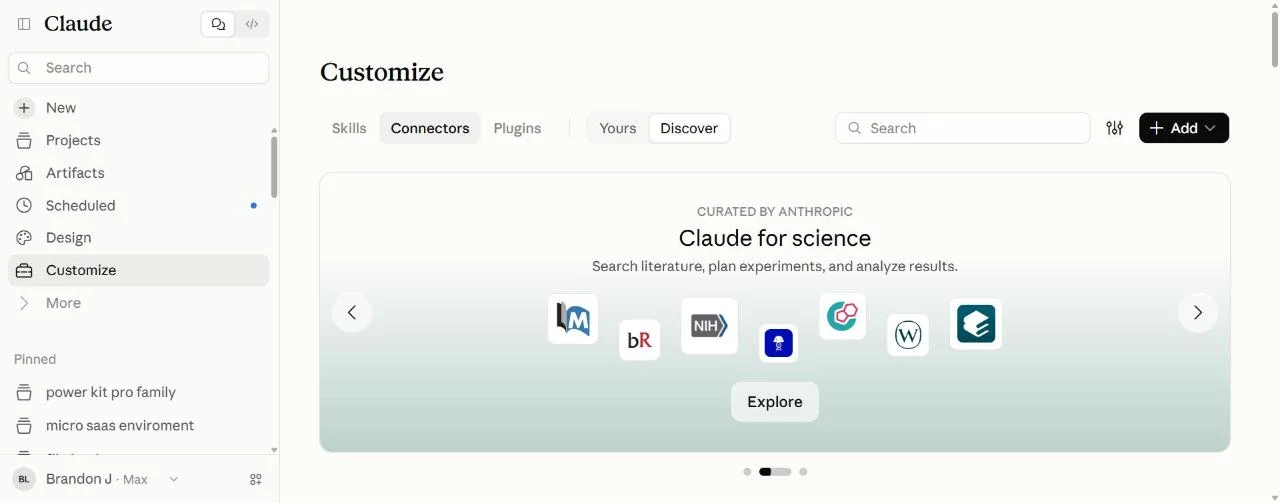
Open Connectors in Claude
On claude.ai or in the Claude desktop app, click Customize in the left sidebar, then Connectors at the top. Older versions have it under Settings, then Connectors.
-
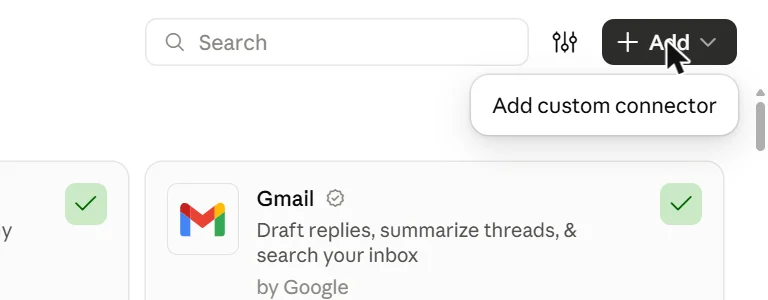
Click Add, then Add custom connector
The black Add button is in the top right. It opens a small menu with one choice: Add custom connector.
-
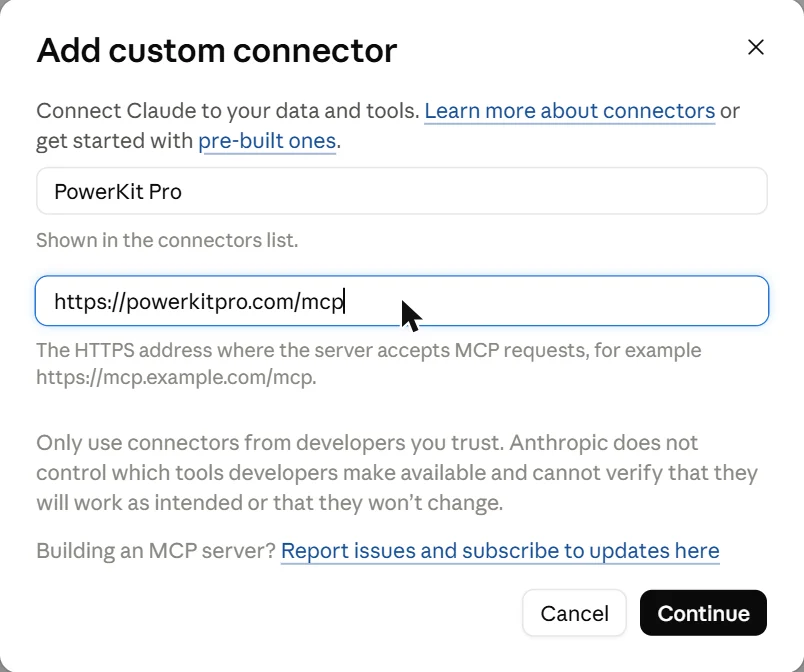
Type the name and paste the address
Name: PowerKit Pro. MCP server URL:
https://powerkitpro.com/mcpThen click Continue.
-
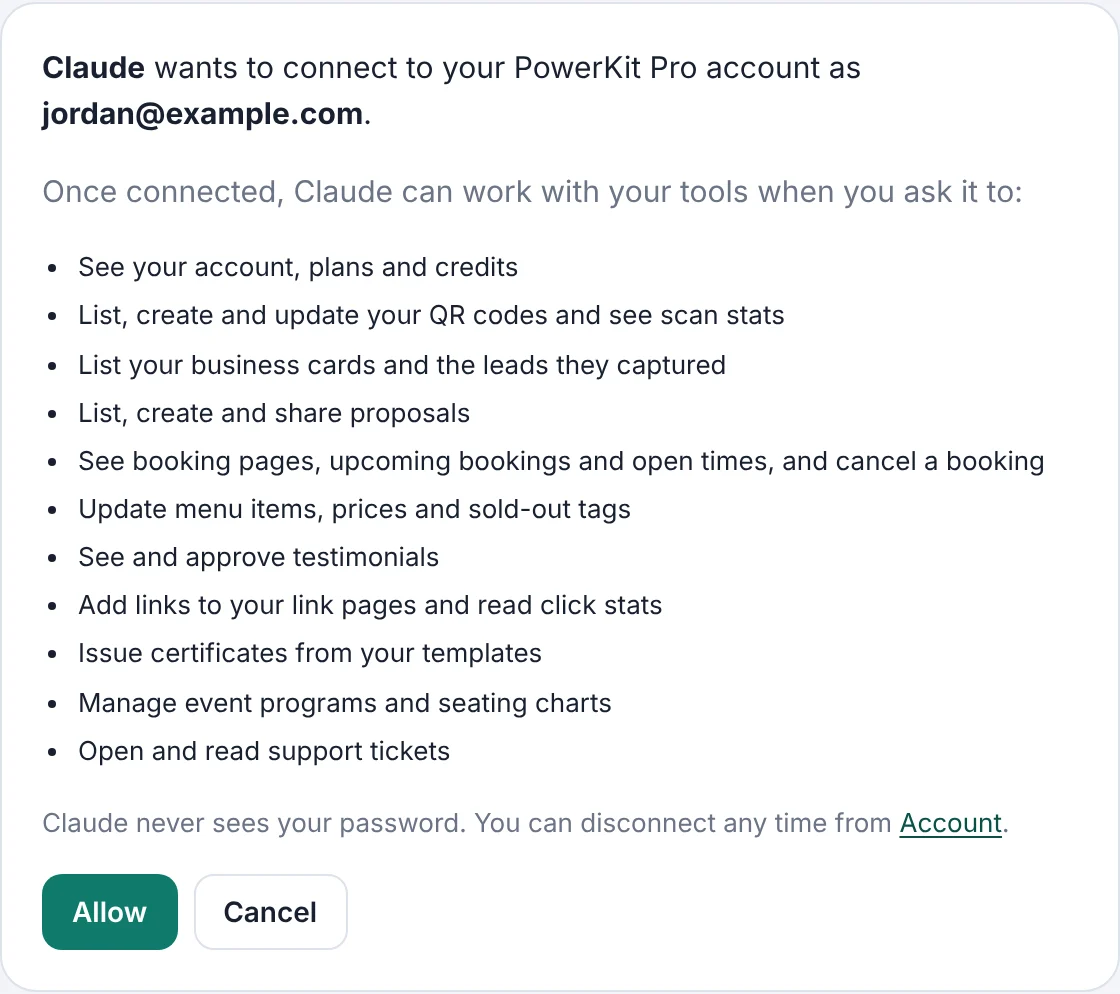
Sign in to PowerKit Pro and click Allow
Claude opens a PowerKit Pro page. Log in if you are not already, check that the email is yours, and click Allow. If you see a Connect button in Claude instead, click it first.
-
You’re connected. Start a chat and ask.
PowerKit Pro now shows Connected. Open a new chat and ask for something, like “show my QR codes”. If Claude doesn’t use it, click the + in the message box and make sure PowerKit Pro is switched on.

Claude desktop app and phone: the desktop app has the same Customize, then Connectors screens shown above. A connector you add on claude.ai or in the desktop app is on your Claude account, so it also works in the Claude phone app; you don’t add it again.
Using Claude Code? In a terminal, run claude mcp add --transport http powerkit https://powerkitpro.com/mcp. Then start claude, type /mcp, choose powerkit and sign in. Claude Code keeps its own list, so it needs this step even if claude.ai is already connected.
Connect ChatGPT in five steps
-
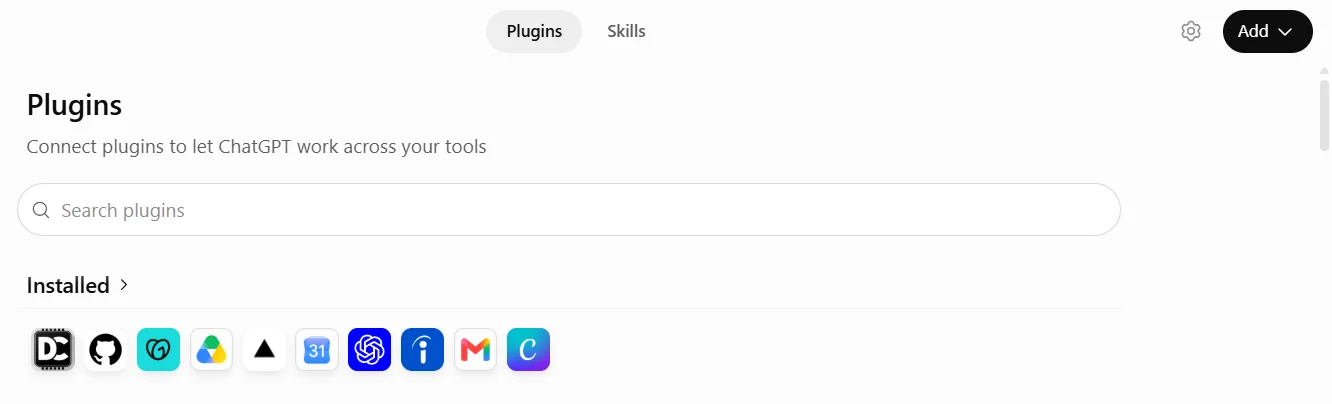
Open Plugins in ChatGPT
On chatgpt.com, click Plugins in the left sidebar.
-
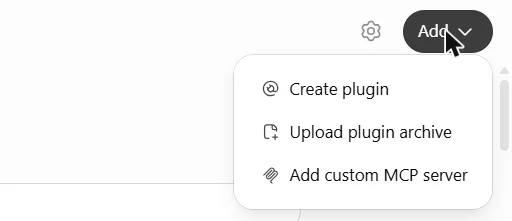
Click Add, then Add custom MCP server
Add is in the top right. Pick Add custom MCP server, the last item.
-
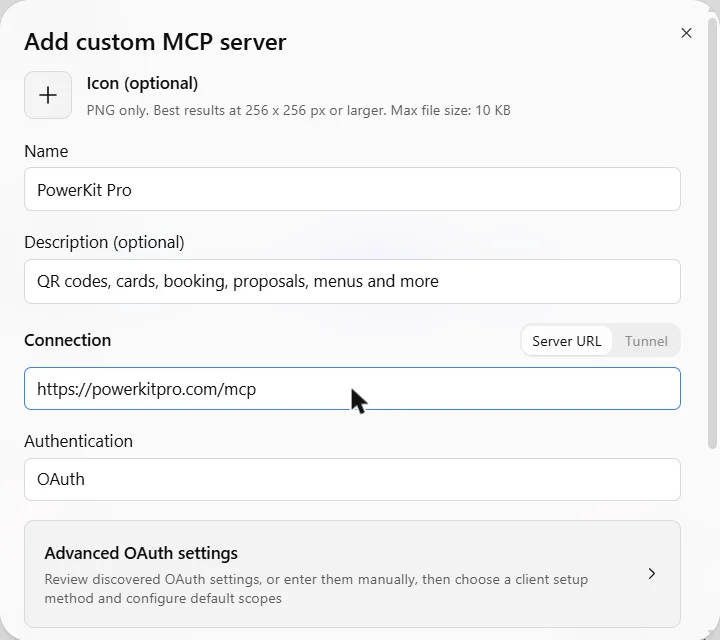
Fill in the form
Name: PowerKit Pro. Description (optional): QR codes, cards, booking, proposals, menus and more. Leave Server URL selected and paste:
https://powerkitpro.com/mcpLeave Authentication on OAuth. You don’t need the advanced settings.
-
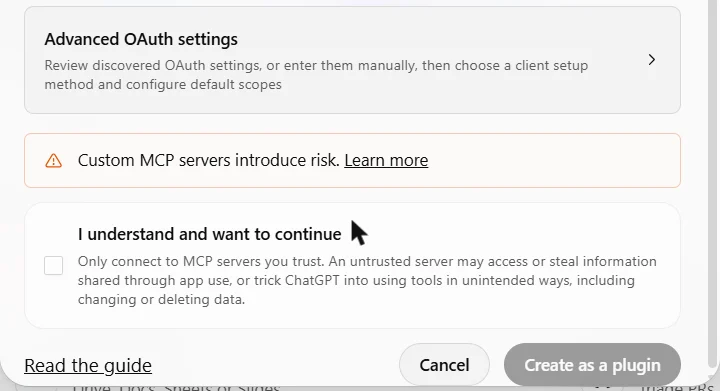
Tick the box and click Create as a plugin
Scroll to the bottom of the form, tick I understand and want to continue, then click Create as a plugin. The warning is shown for every custom server; PowerKit Pro only acts on your account when you ask.
-
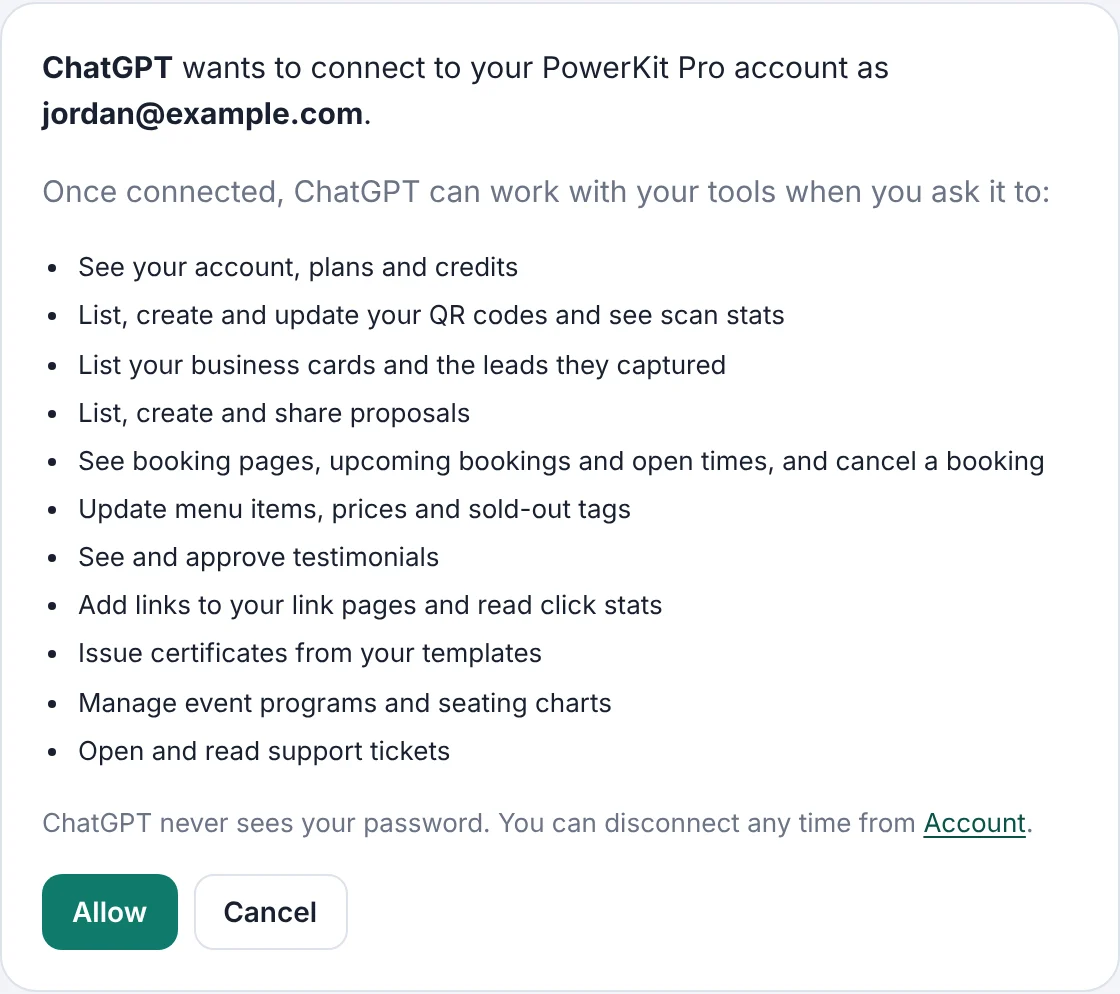
Sign in to PowerKit Pro and click Allow
ChatGPT opens a PowerKit Pro page. Log in if needed, check the email, and click Allow. Then start a chat and ask away.
Connect Codex in three steps
Add the server
In a terminal, run:
codex mcp add powerkit --url https://powerkitpro.com/mcpSign in to PowerKit Pro and click Allow
Codex may open the sign-in page on its own. If it doesn’t, run
codex mcp login powerkit. Log in, check the email and click Allow.Ask
Start Codex and ask, like “list my QR codes”. The Codex terminal, the editor extension and the Codex app read the same settings file (
~/.codex/config.toml), so one setup covers them. Codex is separate from ChatGPT: connecting one doesn’t connect the other.
Things to say first
Plain English works. You don’t need the exact words.
- “Who filled out my quote request form this week?”PowerForms
- “What’s on my booking calendar this week?”PowerBooking
- “Make a QR code for my flyer that goes to mysite.com”PowerQR
- “Add my new YouTube video to my link page”PowerLinks
- “Does Marcus Bell have a signed waiver on file?”PowerWaivers
- “Write a proposal for a $2,500 website rebuild with three packages”PowerBid
- “Mark the salmon sold out and change the wings to $14”PowerMenu
- “Show me new reviews and approve the 5-star ones”PowerReviews
- “Add these 40 guests to the wedding chart”PowerSeat
- “Issue certificates to these 25 people for Saturday’s class”PowerCerts
Good to know
Does it cost extra?
No. The connector is included on every PowerKit Pro plan, free plans too, and it follows the same limits as your dashboard.
Is it safe?
You approve the connection on a PowerKit Pro page, and Claude or ChatGPT never sees your password. It can only act on your own account, and only when you ask. Anything permanent, like cancelling an appointment, gets a confirmation first.
Do I need a paid Claude or ChatGPT plan?
Custom connectors depend on your Claude or ChatGPT plan and workspace settings. If you don’t see Add custom connector or Add custom MCP server, your plan or your workspace admin may not allow it yet.
How do I disconnect?
On powerkitpro.com, open Account and click Disconnect under Connected apps. You can also remove it from Claude or ChatGPT; its access ends when its sign-in expires.
Can it design things?
It handles the doing: creating, updating, checking stats, moving guests, approving reviews. Logos, colors, photos and layouts are best done in the dashboard.
For developers
Remote MCP server (Streamable HTTP) at https://powerkitpro.com/mcp, OAuth 2.1 with PKCE and dynamic client registration. Discovery: https://powerkitpro.com/.well-known/oauth-authorization-server and https://powerkitpro.com/.well-known/oauth-protected-resource. 45 tools, every one annotated read-only or write; call tools/list for names and arguments. The same tools are a REST API and a command line tool.